CAMLIN AVATAR

Bring a digital assistant into Camlin Connect or your own app

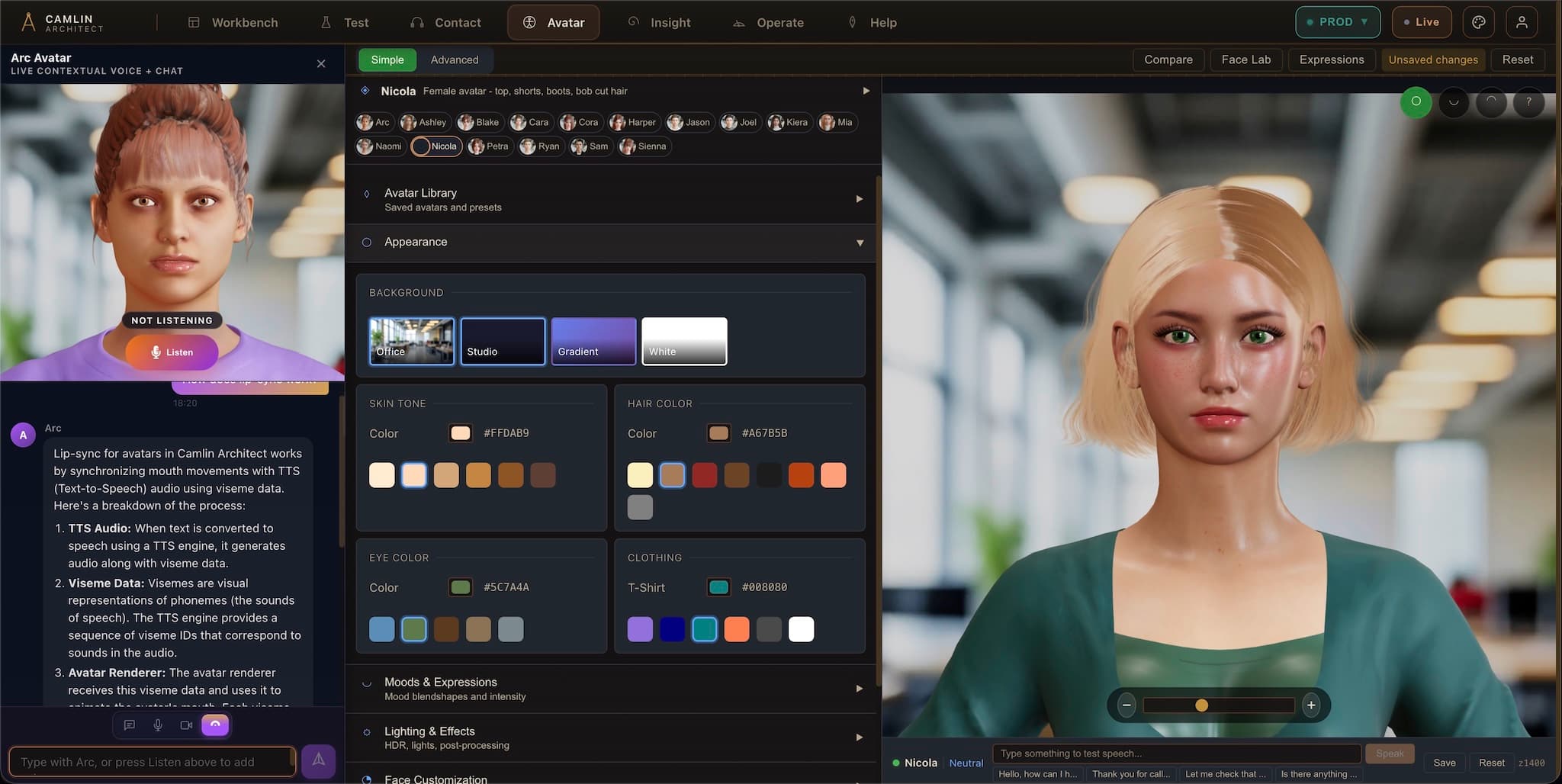
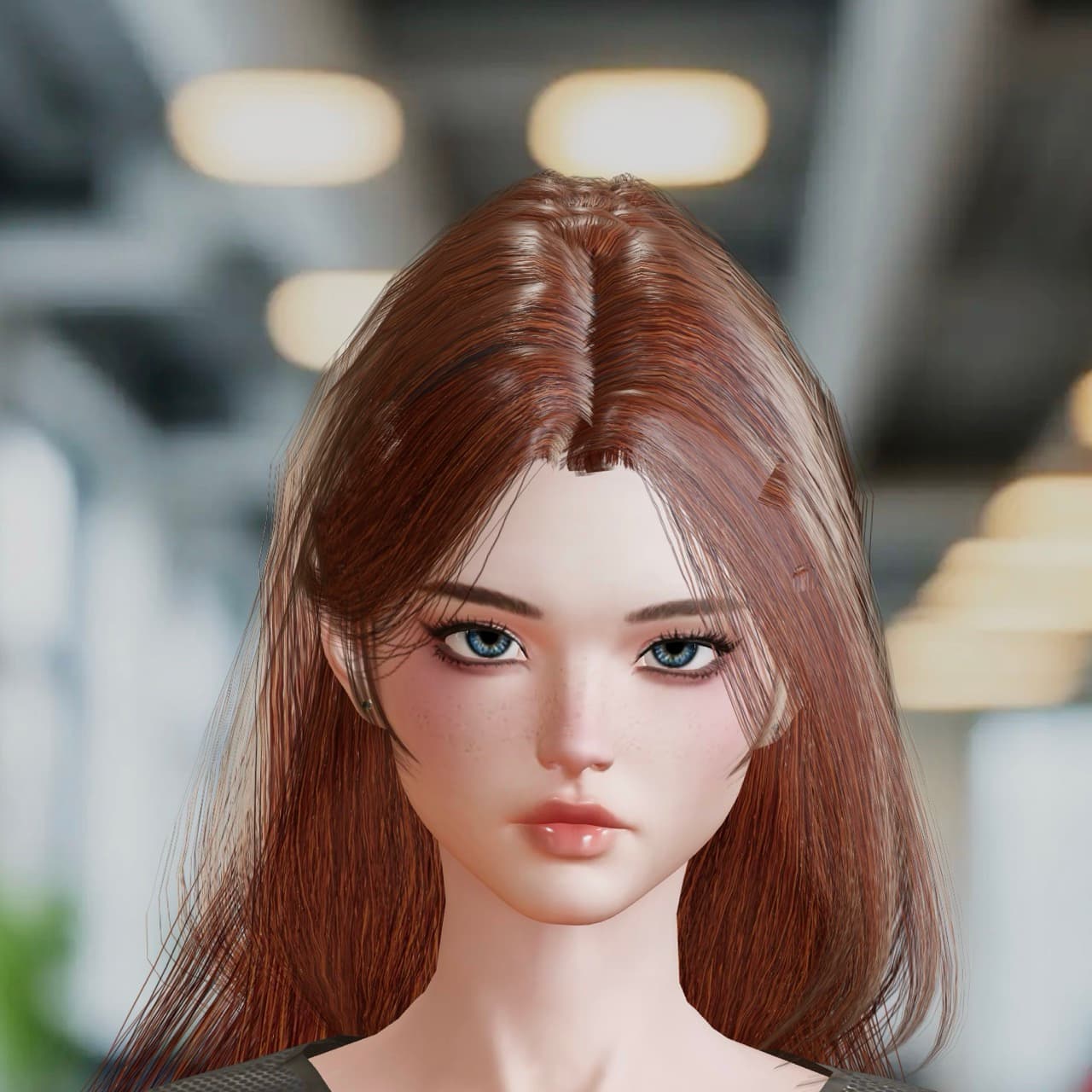
Camlin Avatar gives teams a visible assistant they can use inside Camlin Connect or add to an existing product. It brings a face, a voice, and a clearer way to guide people through service, support, and knowledge tasks.
Built for Camlin ConnectFits existing productsText and voice available
Two Ways To Use Avatar

Built into Camlin Connect or added to your product

Inside Camlin Connect

Use Avatar in service, onboarding, help, and knowledge journeys across the Camlin platform.

Inside your own product

Add Avatar to an existing product so it opens from your own menu and stays tied to the page the person is already viewing.

For Existing Products

Keep it tied to the work on screen

1
Open Avatar from your own menu or button.
2
Show it the page, case, or note the person is on.
3
Keep the conversation focused on that task.
4
Keep the main product in charge of sign-in and actions.
Built for real product journeys

Avatar should open from the places people already use, stay tied to the task on screen, and feel like part of the experience.

WHERE AVATAR FITS

Where Avatar fits in Camlin Connect

Camlin Connect is the platform. Camlin Architect is where journeys are designed. Camlin Avatar is the part people see and hear when a face and voice help the experience.

Across Camlin Connect

Use Avatar in onboarding, support, help, and knowledge journeys where people benefit from a clear on-screen guide.

Designed in Camlin Architect

Teams can map the experience in Architect, then bring it to life with Avatar wherever a visible guide makes the interaction easier.

Works with Contact and Speech

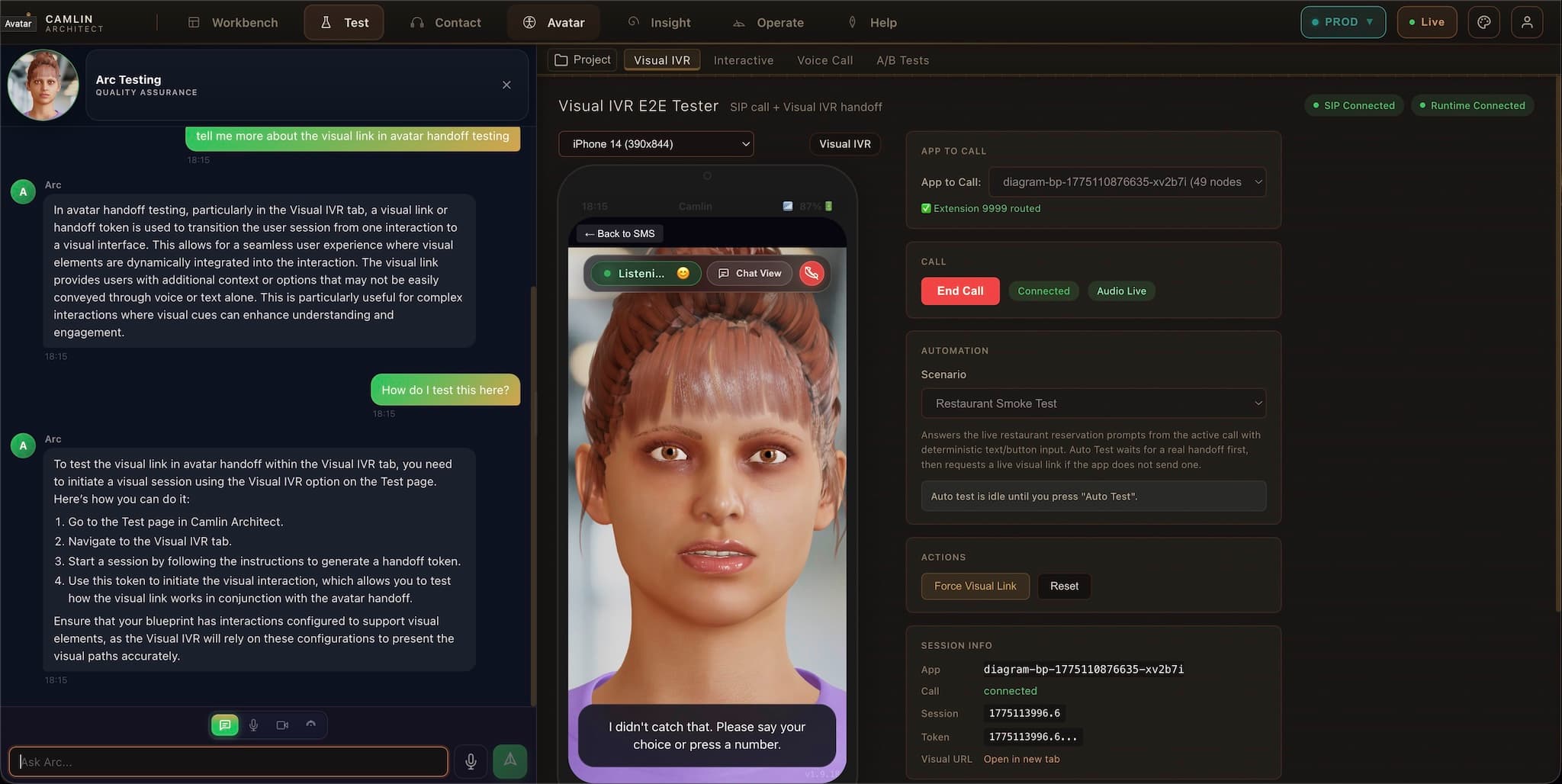
Avatar can sit alongside contact and voice journeys, including browser follow-up after a call, while Speech powers the spoken layer.

WAYS TO ADD AVATAR

Three straightforward ways to add Avatar to an existing product

You can place Avatar on a page, give it a more tailored layout, or use a ready-made side panel.
AvatarEmbed

Place Avatar on an existing page

Add Avatar to a dashboard, help view, workflow, or portal without rebuilding the whole screen.

CamlinAvatar

Build a more tailored experience

Use this option when you want more control over the layout, controls, and branding.

AvatarAssistantPanel

Add a ready-made side panel

Use the panel when you want text, voice, and avatar modes in a familiar side-dock layout.

Most teams start with one of the three options above, then tailor the look and behavior to suit the journey they are building.

REAL PRODUCT EXAMPLE

Let people open Avatar from the work they are already doing

A good pattern is simple: open Avatar from the main product or from the item the person is already reading, so the conversation starts in the right place.

Open from the main application

Open the assistant from the main navigation so people can get help without leaving their place.

Open from the current note or record

Open it from the note, record, or page already on screen so the conversation starts in the right place.

Keep Control In The Main Product

Let the main product stay in charge

1
The main product decides when Avatar opens.
2
The main product tells Avatar which page, note, or case is in view.
3
Avatar stays focused on that task instead of starting as a blank chat.
4
The same sign-in and actions stay in place.
Built to fit the product

People should be able to open Avatar from the work they are already doing and get help that matches that moment.

MODEL LIBRARY

Current models

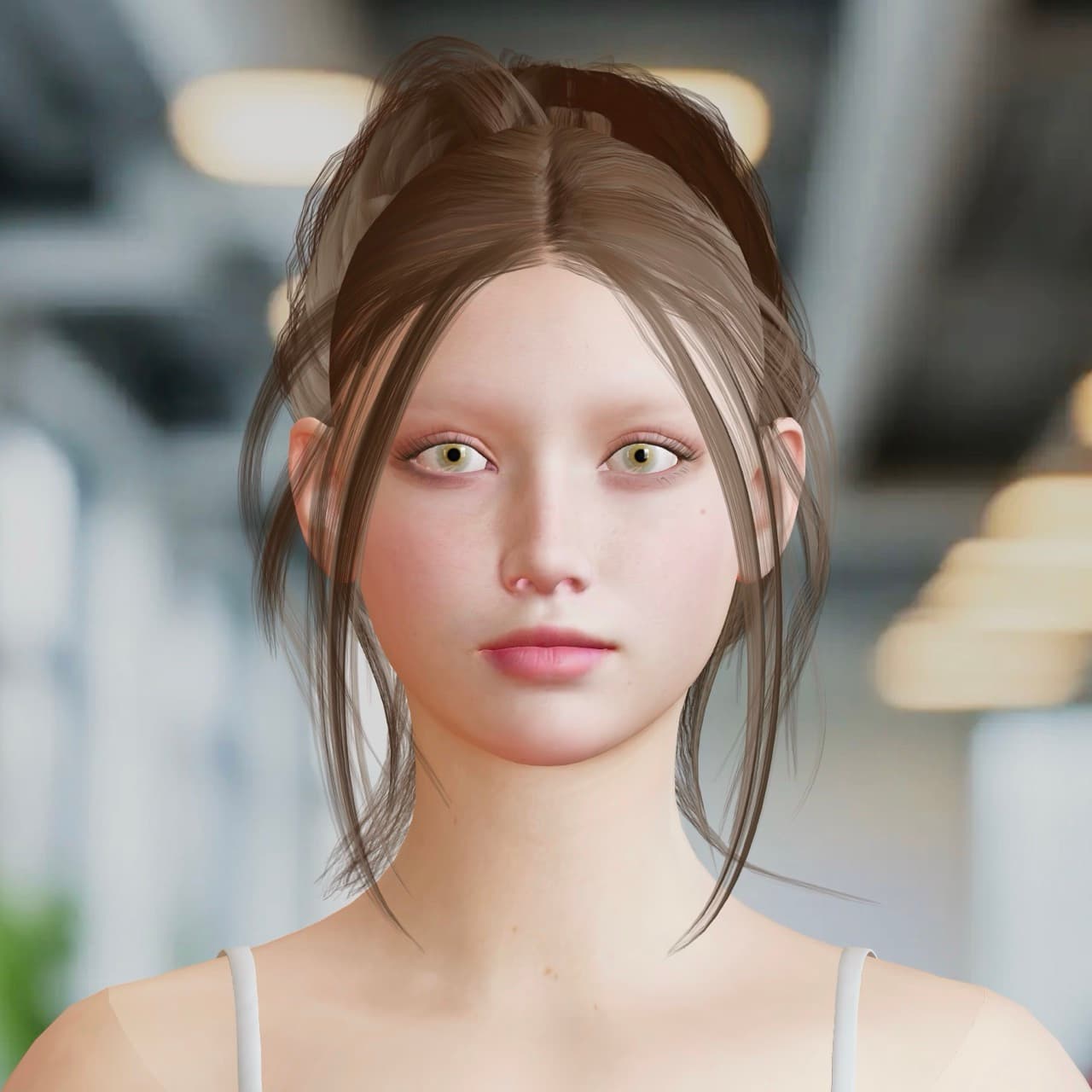
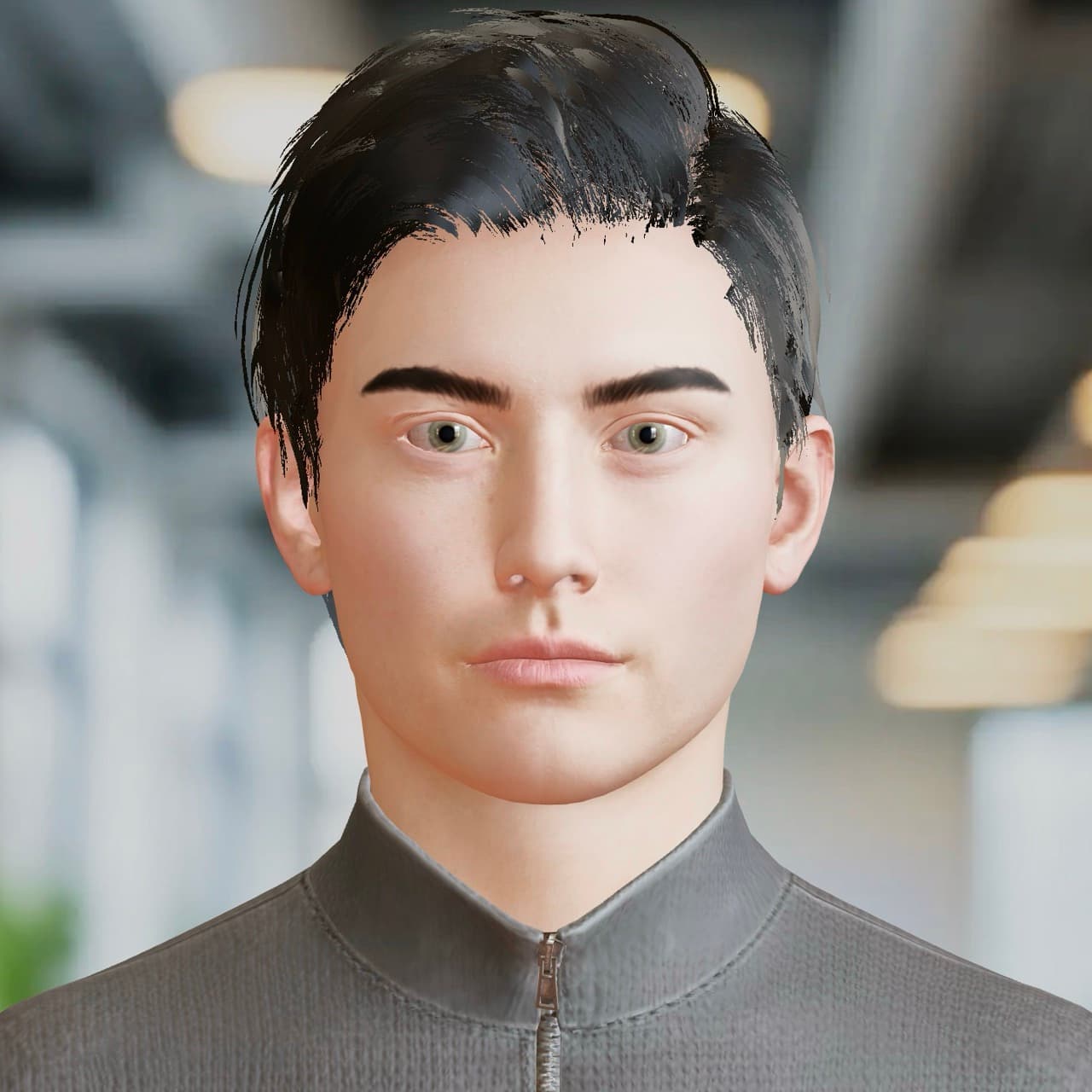
A selection of current models from the avatar library.
Arc avatar model
Arc
AI Architect

Current model from the avatar library.

Cara avatar model
Cara
Contact Centre Assistant

Current model from the avatar library.

Sam avatar model
Sam
Validator

Current model from the avatar library.

Sienna avatar model
Sienna
Operations Assistant

Current model from the avatar library.

Harper avatar model
Harper
Voice Specialist

Current model from the avatar library.

Blake avatar model
Blake
Flow Designer

Current model from the avatar library.

SEE AVATAR

See how Avatar looks, speaks, and guides a journey

Explore the current models, see the style of conversation, and understand how voice and on-screen guidance work together.

Current models

Browse the current avatar library and see how different assistants appear on screen.

Guided conversations

See how Avatar can welcome a user, answer a question, and guide the next step in a journey.

Voice and text

Use spoken replies, on-screen text, or both depending on the experience you want to create.

NEXT STEP

See how Avatar would fit your product

We can show the Camlin experience, the presentation styles, and the best way to bring Avatar into your product.